
If your shop or attraction uses Amero/FlexPOS as its point-of-sale system, the integration brings your customers and their purchases into Heyloyalty. You can see who has shopped with you, what they bought and when they were last there. And you can write to them based on that, for example after a purchase, or when they haven’t been by for a while.
In this guide, you can read how to set up the integration, retrieve earlier data and adjust the field mapping.
What value does the Amero/FlexPOS integration give you?
Follow up after the purchase
Purchases from Amero/FlexPOS come into tracking with product, price and quantity. Start a flow when a customer has bought something, and send for example a thank you, care instructions for the product or a suggestion for something that goes with it.
Find your regulars and the customers who have dropped off
Build a segment on purchase data, for example how many times a customer has bought, or how much they have spent in a period. You can see who shops with you every month, and who shopped often last year but hasn’t been by in the past six months. That last group can get an invitation to come back.
Write to your guests after their visit
If you sell tickets in Amero/FlexPOS, the tickets also come into tracking once you have filled in the Attractions settings. Among other things, the tickets have the event’s end date and the dates of the first and latest validation. You can see who has used their ticket and write to them after the visit, for example with a thank you and an invitation to the next exhibition.
Welcome new customers and club members
New customers from Amero/FlexPOS are created on your list. Start a welcome flow when they are created, so they hear from you while the purchase is fresh. The FlexPOS Club Member field shows the customer’s club member permission from FlexPOS, so your club members can get a welcome of their own.
See the difference between your shops
If you have several FlexPOS clients, for example one per shop, each contact gets the client’s name in the FlexPOS Client field. You can then target campaigns, flows and statistics by the shop the customer comes from.
Setting up the Amero/FlexPOS integration
To set up the integration, your account needs a Premium or Premium+ license. You also need a list with a Tracking integration. Read here how to set up a list and a Tracking integration.
If you had a Heyloyalty account before you set up the Amero/FlexPOS integration, we recommend that you create a new list and Tracking integration for Amero/FlexPOS. That way, you keep the history on your existing list.
Go to Integrations → List integrations, find Amero (FlexPOS) and click Setup integration. If you haven’t created a FlexPOS integration yet, the Amero (FlexPOS) overview page looks like this:
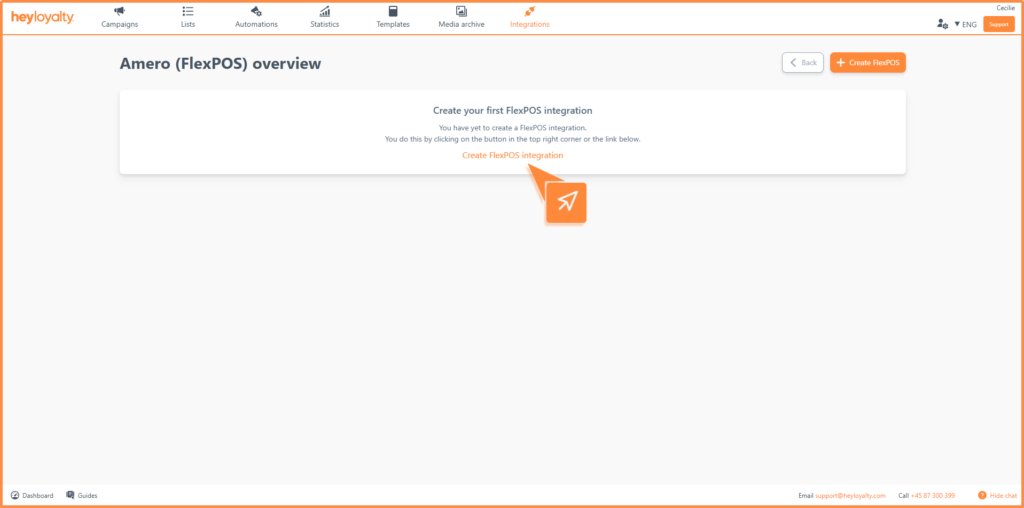
Click Create FlexPOS or the Create FlexPOS integration link. On the Create FlexPOS integration page, you must at least fill in Settings and Clients before the integration can retrieve contacts and purchases.
Under Settings, you choose:
- List: The list in Heyloyalty that the contacts from Amero/FlexPOS go to.
- Match contact by field: The field contacts are recognised by: email or mobile number.
- Which contacts should be retrieved?: The default is Active and inactive contacts. Choose Active contacts only if you only want to retrieve customers who are active in FlexPOS.
- Which club members should be retrieved?: The default is Retrieve both club members and contacts who are not club members. Choose Email permission, SMS permission or Email and SMS permission if you only want to retrieve club members with that permission in FlexPOS.
- Which newsletter subscriptions should be retrieved?: With the default, Service messages and email permissions, contacts are retrieved regardless of their newsletter subscription. Choose Email permission, SMS permission or Email and SMS permission if you only want to retrieve contacts with that newsletter permission in FlexPOS.
If you choose a permission in both of the last two fields, the contacts that meet at least one of the two are retrieved. Which contacts you should retrieve depends on how you use Amero/FlexPOS. If you are unsure, contact support, and we’ll find the right settings with you.
Under Clients, you add the FlexPOS clients the integration should retrieve contacts and purchases from. You can add several, for example one per shop:
- Name: A name for the client, for example the shop’s name. The name is stored on the contact in the FlexPOS Client field.
- client_id and client_secret: The credentials for the client in Amero/FlexPOS.
Click + to add a client and - to remove one. Two clients cannot have the same name or the same client_id. If you remove a client, the integration stops retrieving data from it, but contacts keep their value in FlexPOS Client.
Click Save integration. In the Choose synchronisation method window, you choose whether the integration should also retrieve earlier data:
- Run initial sync: Choose a date in Fetch data from date. The integration retrieves contacts and purchases from that date onwards. It runs in the background and may take a while.
- Start going forward only: The integration only retrieves new data from now on. You can retrieve earlier data later with an initial import.
Once you have chosen, the integration is saved. Heyloyalty first checks the credentials for each client. If they are wrong for a client, the integration is not saved, and the client is marked in red. Once the integration is running, it retrieves new and changed contacts and purchases from Amero/FlexPOS every 5 minutes.
Initial import
If you chose Start going forward only, or you want to retrieve data for a specific period, you do it from the Amero (FlexPOS) overview. Click the three dots next to the integration, and choose Get data from FlexPOS.
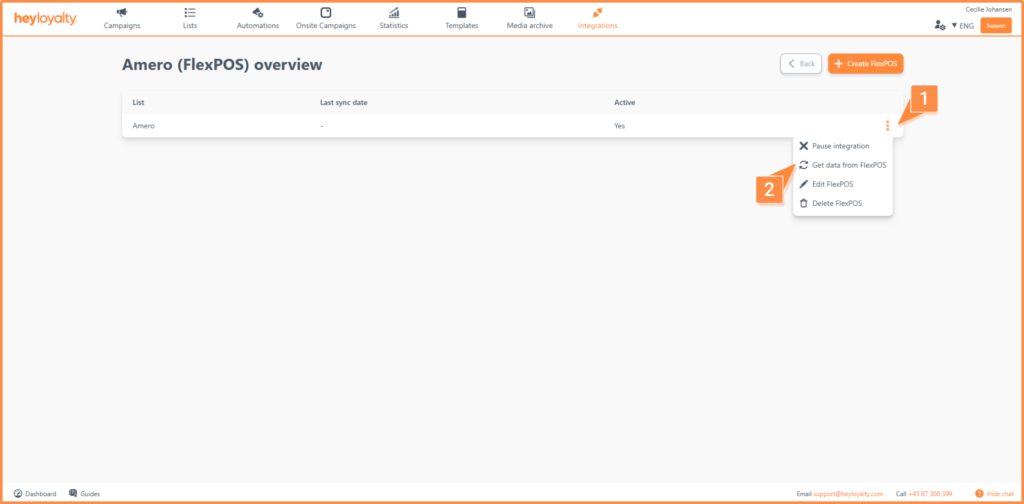
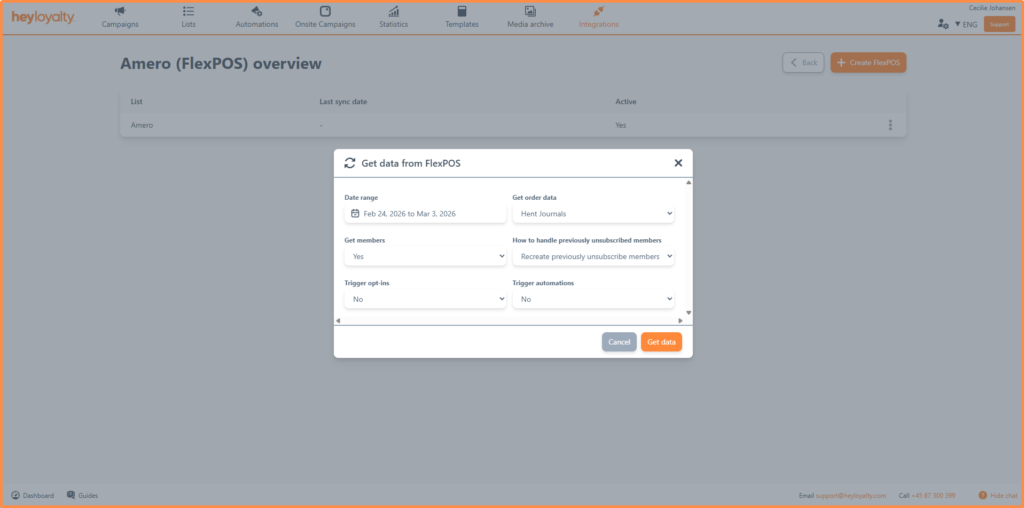
In the Get data from FlexPOS window, you choose what to retrieve. The choices only apply to this import:
- Client: Only shown when the integration has several clients. Choose the client you want to retrieve data from, or All clients.
- Date range: The period you want to retrieve data from. You can select a range of at most 366 days at a time.
- Get order data: Choose Get Journals, Get Tickets or Get Attraction Orders, or No if you don’t want to retrieve purchase data. Tickets and Attraction Orders require the Attractions settings to be filled in.
- Get contacts: Choose Yes if you also want to retrieve contacts.
- How to handle previously unsubscribed contacts: Choose whether contacts who previously unsubscribed should be created again (Recreate previously unsubscribe contacts) or skipped (Ignore previously unsubscribed contacts).
- Trigger opt-ins: Choose Yes if contacts should confirm their subscription through a confirmation email before they are created on the list.
- Trigger automations: Choose Yes if the import should send welcome emails and automations related to the contact’s subscription or the update of a field.
Click Get data. The import runs in the background.
You can see whether data from Amero/FlexPOS has come into Heyloyalty under Lists, where the contacts land on your list, and under Statistics → Activity feed, where the purchases are shown.
Advanced setup and customization
Advanced settings
On the integration page, you can also set advanced settings for the integration.
If you sell tickets and/or memberships in Amero/FlexPOS, you must fill in the Attractions settings: Attractions API URL, Attractions client_id and Attractions client_secret. You get this information from your FlexPOS consultant or FlexPOS’ support. Once they are filled in, the integration also retrieves tickets and orders from Attractions, and you can see the Attractions Customer fieldmapping when you edit the integration.
Under Import settings, you control how the fixed import every 5 minutes creates and updates contacts. When you edit the integration, the section is collapsed. Click the heading to expand it.
- Import type: Choose how the contacts from Amero/FlexPOS should be created in Heyloyalty.
- Date format: The date format in the field,
d-m-Y, matches the one Amero/FlexPOS delivers as standard. If you have a different setup, you can change it here. - Sign to distinguish choices: Tells the integration how to read data on several levels. The default is a period. If a customer has, for example, a card with several details:
you can map the card number with"cards": { "Cardnumber": 1234, "Cardname": "Pension" }cards.Cardnumber. - Avoid subscribing currently unsubscribed contacts: Decides whether contacts who previously unsubscribed from your list are created again when they come in through the import.
- Send active automations: Choose Yes if automations, for example welcome emails, should be sent when a contact is created on the list through the integration. The default is No.
- Send webhooks: Choose Yes if creations and updates from Amero/FlexPOS should send a webhook, for example to a CRM system. With No, Heyloyalty doesn’t send webhooks when data comes in from Amero/FlexPOS.
- Send import error report to: Enter an email address. If the import of some contacts fails, you get an email with a list of them.
Field mapping
By default, the integration maps a number of fields from Amero/FlexPOS. You find the field mapping at the bottom of the integration page in three sections. The fields in Heyloyalty are on the left, and on the right you enter the field from Amero/FlexPOS:
- Customer fieldmapping: Contact data from Customers in Amero/FlexPOS. The fields land on your list in Heyloyalty. Fields that don’t exist on the list are greyed out.
- Journal and Tickets fieldmapping: Purchase data from Journals, Tickets and Attraction Orders in Amero/FlexPOS. The data lands in the list’s tracking and can be seen in the Activity feed under Statistics.
- Attractions Customer fieldmapping: Contact data from Attractions, if you have filled in the Attractions settings.
If you don’t use a field, or it isn’t active on your list or in your tracking, you can remove it from the mapping. Some fields are locked, for example FlexPOS Customer Uid and the field you match contacts by, because the integration uses them to recognise contacts and purchases.
If you want to map more data fields than the ones already mapped, first make sure the data exists in the Amero/FlexPOS API endpoints. Then you can add them in the field mapping on the integration page.
Your customers from Amero/FlexPOS are ready in Heyloyalty
The integration now keeps retrieving your customers and their purchases from Amero/FlexPOS. The contacts are on your list, and the purchases are in tracking.
Use it to see who has shopped with you recently, and who hasn’t been by in six months. Create a segment with your customers from Amero/FlexPOS, and send them a campaign. Or build a flow that writes to the customer after a purchase, so the follow-up runs automatically.

If you need information or help that you cannot find here on the guide site, you are always welcome to contact our support!
support@heyloyalty.com / tel. 87 300 399